




SpinGranny App for Mobile Play
Playing away from a desk is exactly what the SpinGranny app was made for. Nothing from the SpinGranny Casino site gets lost on the way: the full lobby and your balance move with you to the phone. Installation happens on our website and works really well on Android and iOS. All modern computers are covered too. The whole setup is free and takes about a minute, after which the platform opens full-screen from an icon on your home screen.



SpinGranny App Features
The mobile version repeats the site one-to-one and adds a few conveniences that only a phone can offer. Nothing from the desktop functionality is cut, and that includes payments along with bonus activation. The table lists what matters most in daily use.
| Feature | How it works |
| Full catalog | 6,000+ games on the phone. Online slots and live tables included. |
| One balance | Deposits made on mobile show up everywhere at once. |
| Push alerts | Bonus deadlines and prize news reach the lock screen. |
| Full-screen mode | The browser frame disappears after installation. |
| Screen fit | Layouts rebuild for the vertical screen automatically. |
Everything from the table works right after installation, with no settings to configure first. The features stay the same on tablets, where the interface simply spreads across a larger screen.
How the SpinGranny App Works Without a Store
The app runs on PWA technology, which means the website itself becomes a program on your device. No marketplace takes part in this process: the browser sees that our platform supports the format and offers to install it. One confirmation adds the icon next to your other applications.
Updates in this format require no attention at all. Any change we release appears on your side automatically, so the icon at Spin Granny always opens the current version of the mobile casino.
Setting It Up on Android
Installation runs through Chrome and works on almost any Android phone, regardless of its power. The whole process takes about a minute.
- Open the SpinGranny website in the Chrome app.
- Tap the three-dot menu next to the address bar.
- Select Add to Home Screen and confirm.
- Place the new icon wherever it is convenient.
For your phone, SpinGranny works like a regular application: the icon appears in the app list and opens the platform full-screen. If the browser asks about notifications during setup, allow them to receive bonus reminders.
A Note on APK Files
You do not need an APK file to play, because the PWA format fully replaces it. Sites that offer a SpinGranny APK have no connection to our platform, and downloading files from them is not safe. Install the app only from the official website, where the whole process takes place in the browser.
Setup on iPhone and iPad
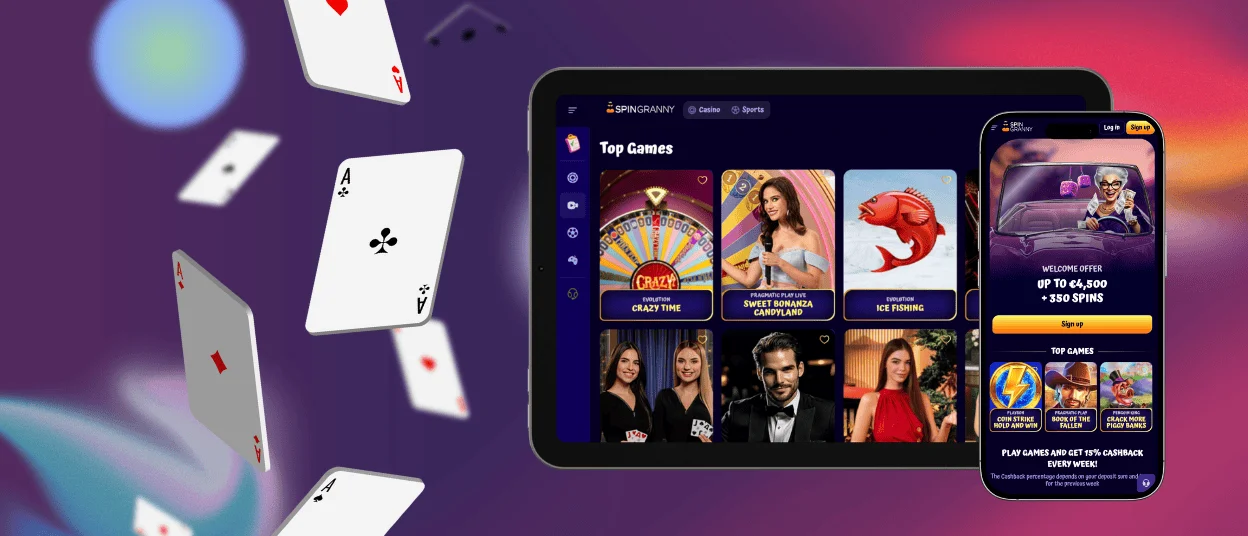
On Apple devices, the installation goes through Safari. Open the site, tap the Share button, select Add to Home Screen, and confirm. The SpinGranny icon appears next to your other apps and launches the platform full-screen.
The steps are identical on iPad, where the interface simply becomes larger. The tablet version at Spin Granny supports both orientations, so you can play the way you find comfortable.
SpinGranny Shortcut for Windows and Mac
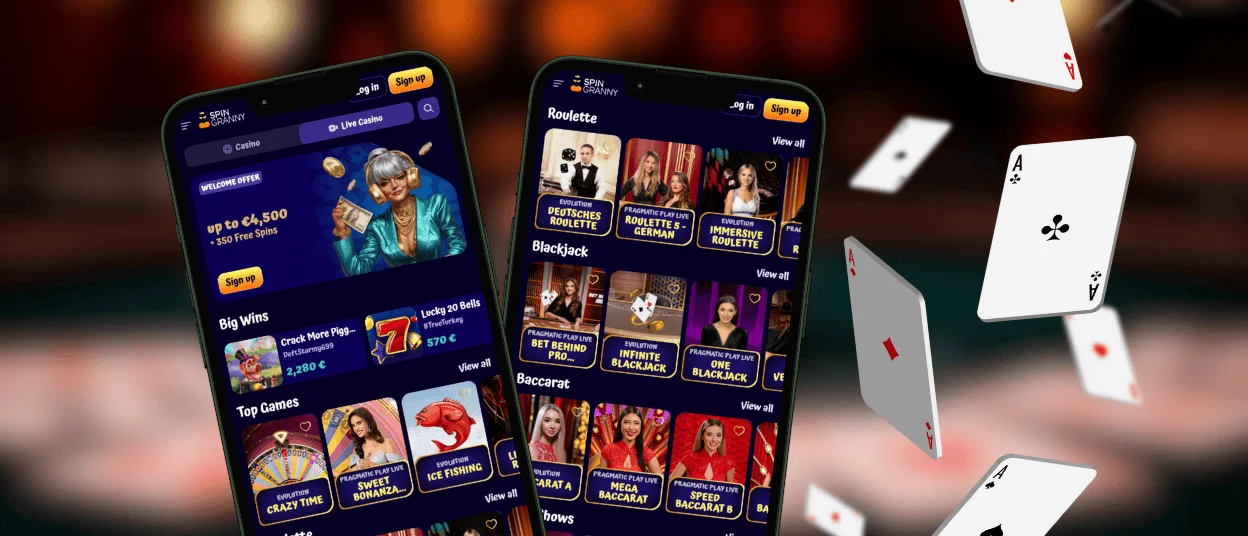
A computer can get its own icon through Chrome as well. In the three-dot menu, open Cast, save, and share, then select Create shortcut, which turns the current tab into a separate window. You can give the shortcut a clear name, which helps if several icons are already on the taskbar. The site works at the same speed as in a regular browser tab.
App or Browser Tab: What to Pick
Both options open the same platform, and your SpinGranny account works identically in each. The browser is a good choice for rare visits or when you play from someone else’s device, since no icon stays on the screen afterward. The installed version suits regular play better: it starts in one tap and takes up the whole display.
The gaming experience is the same in both cases. You can switch between them at any time, and many players at SpinGranny Casino use both formats depending on the situation.
Tips for Smooth Play on Any Device
Stable play depends on a few simple things, not on an expensive device.
- Keep your browser updated, whichever one you use;
- Connect to a stable network before opening live tables;
- Leave some free storage space on the device;
- Reopen the icon after a long break to refresh the session.
These points cover most of the situations that could slow down a session. If a problem still appears, live chat at Spin Granny puts you in touch with the support team at any hour.
FAQ
Will the icon disappear if I clear my browser data?
No, the icon stays on the home screen after cleaning. Only the saved session is reset, so the next launch will ask for your email and password again. The SpinGranny account itself is not affected, and the balance is in place.
Does mobile play use a lot of internet data?
Slots consume about as much traffic as regular web browsing. Live tables need more, because they stream real video, so Wi-Fi is a better choice for them. The installed icon does not add any traffic of its own.
Is it safe to make a deposit through the app?
Yes, the icon opens the same protected site, and payments at SpinGranny Casino go through the same encrypted connection. The verification process can also be completed from the phone, since document photos are uploaded straight from the camera. The mobile format does not simplify money management.


